Skip to content

Why Are Office Chairs Important for Productivity?

Office Chairs are often treated as ordinary office equipment, yet they influence how comfortably people work, think, and remain focused. A poorly adjusted chair can create pressure behind the knees, unsupported lower back, or restless shoulders. These small discomforts can interrupt concentration repeatedly. The U.S. Occupational Safety and Health Administration’s Computer Workstations eTool recommends adjustable seat height, back support, and stable arm positioning. These features help employees maintain neutral working postures during long computer sessions.

The business impact is also visible in occupational data. The U.S. Bureau of Labor Statistics regularly identifies musculoskeletal disorders among cases involving days away from work. Office work may appear physically easy, but static sitting still places sustained demands on the neck, back, and hips. Ergonomics research from Cornell University emphasizes fit, adjustability, and posture variation rather than one universal chair design. That distinction matters. A tall employee, a shorter colleague, and someone recovering from back discomfort need different settings.

A good chair does not create productivity by itself. It removes avoidable friction. An employee can adjust the seat depth, support the lower back, and keep both feet stable. Their hands then reach the keyboard without raised shoulders. The evidence is useful, but not perfect. Productivity also depends on workload, lighting, management, and breaks. Still, investing in properly fitted Office Chairs can support comfort, reduce physical distractions, and create a more reliable foundation for sustained performance. A chair is not a magic button. It is a practical workplace decision that deserves more attention.
Why Are Office Chairs Important for Productivity?

What Makes an Office Chair Essential for Productive Work?

An office chair is essential because it supports the body while the mind handles demanding work. In my experience, poor seating creates small distractions before causing obvious pain. The right seat keeps your hips level, your feet grounded, and your shoulders relaxed. A firm, breathable cushion can reduce pressure during long writing sessions. Adjustable lumbar support should follow the natural curve of your lower back.

Small adjustments matter.

Ergonomic guidance recommends positioning the screen near eye level and keeping elbows close to the body. A chair cannot correct every workstation problem. I once raised my seat too high, thinking it would improve my posture. Instead, my feet lost contact with the floor, and my lower back became tense. That mistake changed how I evaluate chairs.

Productive seating also allows controlled movement rather than forcing one rigid position. Wheels should roll smoothly, while the base should feel stable during turning. Short movement breaks remain necessary, even with excellent support.

Comfort is personal. Some users prefer a softer cushion, while others need firmer pressure. A reliable chair should offer measurable adjustments, clear instructions, and durable materials. It should help you stay attentive without making you constantly aware of it.

How Chair Design Influences Posture, Comfort, and Focus

Why Are Office Chairs Important for Productivity?

How Chair Design Influences Posture, Comfort, and Focus

A well-designed office chair supports posture without forcing the body into one rigid position. Adjustable seat height helps keep feet flat, while lumbar support follows the lower curve of the back. The result is less pressure during long periods of typing or reading. Small changes matter.

Seat depth also affects concentration. If the seat is too deep, its front edge may press behind the knees. If it is too shallow, the thighs receive little support. A breathable surface can reduce heat around the hips, especially in warm rooms. Armrests should let the shoulders relax, not push them upward.

In practical desk assessments, people often blame tiredness on workload alone. Chair design may be part of the problem. A screen placed too low can encourage neck bending, even with a supportive chair. Adjusting the chair, desk, and monitor together usually works better than changing one item. Comfort is active.

Ergonomic guidance generally favors movement over a fixed “perfect” posture. Standing briefly, shifting weight, and stretching can interrupt stiffness. This is where chair design has limits. A highly adjustable chair cannot replace sensible breaks or a suitable desk height. Some users also need time to learn each adjustment, and that learning curve is easy to overlook.

Why Are Office Chairs Important for Productivity?

Neutral-Posture Targets That Support Comfort and Focus

A well-designed office chair helps users maintain neutral joint positions, reducing unnecessary muscle strain and physical discomfort. These commonly recommended angle ranges can make it easier to remain comfortable and focused during extended computer work.

Values show the midpoint of commonly recommended ergonomic ranges. Sources: OSHA and CCOHS.

Which Ergonomic Features Support Efficient Office Tasks?

An office chair can influence focus, movement, and comfort during long work sessions.

In my experience, adjustable features matter more than soft padding alone.

Seat height should let both feet rest flat, with knees close to hip level. This position reduces pressure under the thighs and supports stable leg movement.

Lumbar support should meet the natural curve of the lower back, not push aggressively against it.

A backrest that reclines slightly can reduce stiffness during reading or video meetings.

Adjustable armrests should allow relaxed shoulders and nearly level forearms while typing. Seat depth also matters. The user should have a small gap between the seat edge and the knees.

Breathable fabric can limit heat, though comfort still depends on room temperature and clothing. No chair fixes poor habits.

Tips:

  • Change posture regularly.
  • Stand for brief tasks.
  • Keep the screen near eye level.
  • Adjust one feature at a time.
  • A five-minute movement break may help more than endless chair adjustments.

I sometimes ignore this advice when deadlines become tight, which shows the limitation of ergonomic design: it supports good choices but cannot enforce them.

Check for wobbling, uneven height, and loose controls before relying on any adjustment. A practical chair should remain stable, easy to modify, and comfortable after several hours, not only during a quick showroom test.

How Proper Seating Affects Health and Workplace Performance

Office seating is closely connected to health and workplace performance. A poorly fitted chair can leave the lower back tense, shoulders raised, and legs numb by mid-afternoon. These discomforts may reduce concentration and encourage frequent breaks. Proper support helps workers maintain a neutral posture while typing, reading, or joining meetings.

An adjustable chair should support the lower back without forcing the spine forward. Feet should rest flat, with knees near hip level. The desk should allow relaxed shoulders and elbows close to the body. A screen placed at a comfortable height can also reduce neck strain. In my experience, small adjustments often improve focus within minutes, although a chair cannot solve every workplace problem. Stress, poor lighting, and long uninterrupted tasks still matter.

Tips: Adjust the seat before starting work. Keep both feet supported. Change position regularly. Stand for a few minutes when possible. Notice warning signs, such as tingling, stiffness, or aching. Do not ignore them. Even well-designed seating can become uncomfortable when used for eight hours without movement. A short stretch beside the desk may protect productivity better than simply buying a more expensive chair.

Why Are Office Chairs Important for Productivity? - How Proper Seating Affects Health and Workplace Performance

Seating Factor Evidence-Based Recommendation Health Benefit Workplace Performance Benefit Practical Check
Seat height Adjust the chair so the feet rest flat on the floor and the thighs are approximately horizontal. Helps reduce pressure under the thighs and supports a stable lower-body position. Improves comfort during keyboard and desk work, helping reduce avoidable distractions. Feet are fully supported, knees are close to hip level, and the legs are not dangling.
Backrest support Use a backrest that supports the natural curve of the lower back and allows the back to remain supported. May reduce strain associated with unsupported or sustained awkward postures. Supports longer periods of focused work by improving perceived comfort. The lower back remains in contact with the backrest without excessive slouching.
Seat depth and width Choose a seat that supports the thighs without pressing behind the knees and provides enough room to change position. Helps avoid pressure on blood vessels and soft tissues behind the knees. Makes it easier to maintain a comfortable posture while reading, typing, or attending meetings. A small gap remains between the seat edge and the back of the knees.
Armrests Set armrests so the shoulders remain relaxed and the elbows stay close to the body. Can reduce unnecessary loading of the neck, shoulders, and upper back. Supports comfortable mouse and keyboard use without encouraging shoulder elevation. Shoulders are relaxed, elbows are near the torso, and the armrests do not prevent the chair from moving close to the desk.
Desk and keyboard alignment Position the keyboard and mouse so the wrists are generally straight and the forearms are approximately parallel to the floor. May reduce awkward wrist, forearm, and shoulder positions. Makes repetitive computer tasks more comfortable and easier to sustain. The keyboard and mouse are close enough that the user does not need to reach forward or sideways.
Monitor distance and height Place the monitor approximately 20–40 inches (50–100 cm) from the eyes, with the top of the screen at or slightly below eye level. Helps limit excessive neck bending and may reduce visual discomfort. Supports a neutral head position during extended screen-based tasks. The user can read the screen without leaning forward or tilting the head upward.
Movement during the workday Change posture regularly, stand when practical, and take brief movement pauses instead of remaining in one position for long periods. Reduces prolonged static loading and supports circulation and musculoskeletal comfort. Can help maintain alertness and reduce discomfort-related interruptions. The employee periodically changes position or performs a short movement activity.
Chair adjustability Prioritize adjustable seat height, backrest position, lumbar support, and tilt where possible. Allows the workstation to accommodate different body sizes and individual support needs. Improves the likelihood that each employee can maintain a comfortable, task-appropriate posture. The user can make adjustments without tools and can maintain support while performing normal tasks.

Evidence note: Recommendations are based on general ergonomic guidance from the U.S. Occupational Safety and Health Administration and public-health ergonomics principles. Individual needs may vary, and persistent pain should be assessed by a qualified healthcare professional.

How to Select and Adjust an Office Chair for Productivity

An office chair affects productivity through posture, movement, and comfort. I learned this after working at a desk with a fixed-height chair. My shoulders tightened by noon, and small tasks took longer. The U.S. Occupational Safety and Health Administration identifies adjustable seating, lumbar support, and stable foot placement as core workstation features. Its guidance also stresses that one chair setting cannot suit every worker.

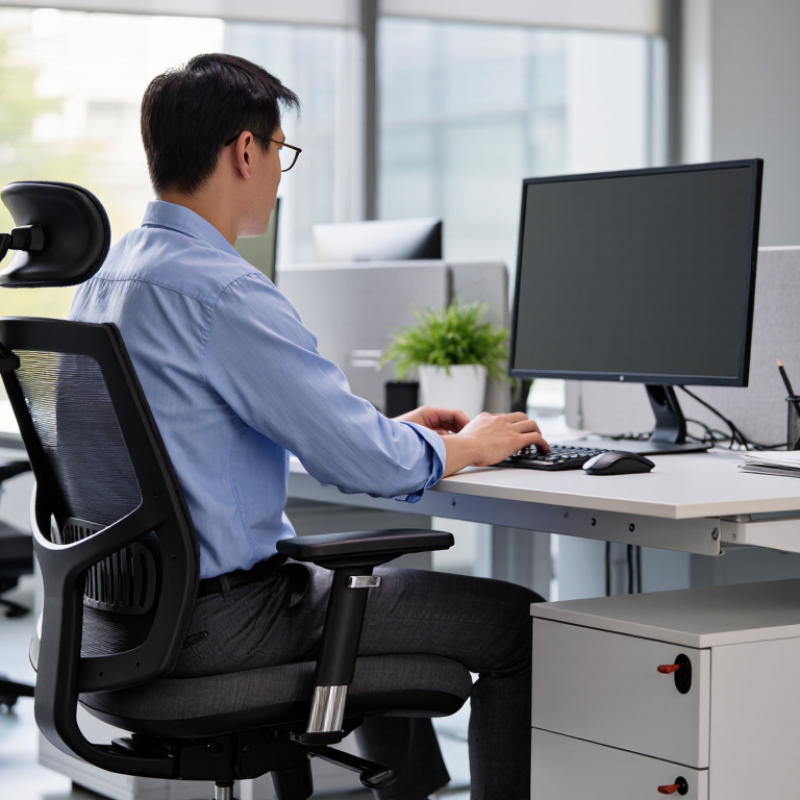
Select a chair with adjustable seat height, depth, backrest angle, and armrests. Sit with both feet flat on the floor, or use a footrest. Keep your knees near hip level, and leave two or three fingers of space behind them. Your lower back should meet the chair’s support, not hover above it. The backrest should follow your spine while allowing slight movement.

A 2023 U.S. Bureau of Labor Statistics report recorded more than 880,000 private-industry cases involving days away from work, including many musculoskeletal injuries. That figure is not proof that a chair caused each injury, but it shows why workstation design deserves attention.

Adjust the chair before adjusting the monitor. Keep the screen near eye level, about an arm’s length away. Rest your elbows near your sides, with relaxed shoulders. Change position every 30 to 60 minutes, even if the chair feels comfortable. I sometimes forget this part. Comfort can hide fatigue. The European Agency for Safety and Health at Work links prolonged sitting and poorly designed workstations with musculoskeletal risk, so movement remains essential.

Scroll To Top